![heybabbl-logo-white.svg]](https://learn.heybabbl.ca/hubfs/heybabbl-logo-white.svg)
Setting up your Technicolor CGA4234
- Connect the coax cable to a coax cable outlet
- Connect the power cord
- Wait for top 4 lights to lock
- When top 4 lights are solid you will notice 2 additional lights blow the 4th – these are your wifi signals (2.4 and 5G)
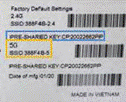
- To connect to wifi look on the bottom of your modem for the SSID (wifi name) and Pre Shared Key (password) - connect to 5G SSID and enter password
- Once that has been done follow the next steps below to set up a new WiFi name and pssword
If the second light from the top blinks continuously this indicates that the coax cable outlet you are connected to is disconnected – please try another
How to change the Wifi Name and Password for your Technicolor CGA4234
- Using a laptop either connect to the modem with an ethernet cable or be sure you are connected to the default WiFi
- Open a browser and type in 192.168.0.1
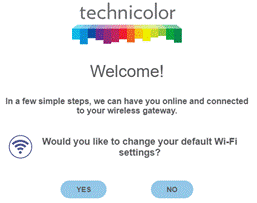
- You will then be asked to change your default wifi settings – Click on YES
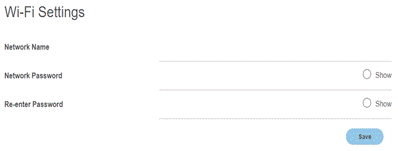
- You will then be asked to input a network (WiFi) name and Password
- Once that has been completed click Save
How to log into the Technicolor modem
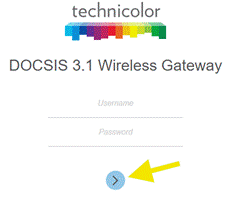
- Confirm you are connected either by wifi or by ethernet - open a web browser and type in 192.168.0.1
- You will then see the Technicolor Modem login page
- No need to enter a username or password on this screen – simply click the blue dot
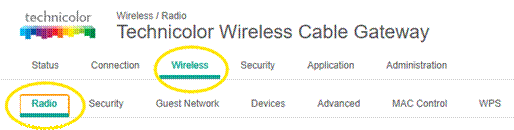
How to change the WiFi Name for your Technicolor Modem
- Once you are logged into the modem click on Wireless and Radio
- Scroll down until you see Network Name, on left side of page, for 2.4 WiFi – insert new name
- Scroll further down and locate Network Name, on left side of page, for 5G Wifi – insert new name
- Scroll to the bottom of page and Save
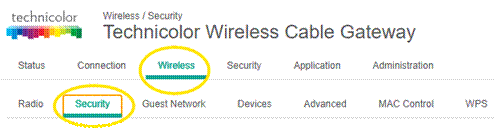
How to change the WiFi Password for your Technicolor Modem
- Scroll to the top of the page and click on Wireless and Security
- On the left hand side of the page you will see Network Password for 2.4 Wifi – insert new password
- Scroll down and on the left hand side you will see Network Password for 5G WiFi – insert new password
- Scroll to bottom of page and Save and close browser page
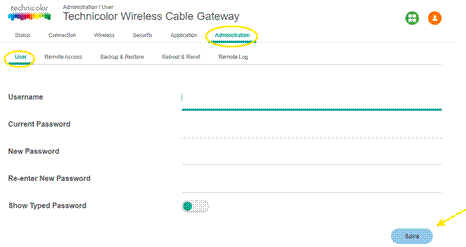
How to create a Login Username and Password for you Technicolor Modem
- Log into the modem as per above
- Click on Administration
- Click on User
- Add a Username
- Leave Current Password Blank
- Add New Password and Re-enter New Password
- Save
How to Bridge the Technicolor modem
- Log into the modem as per above
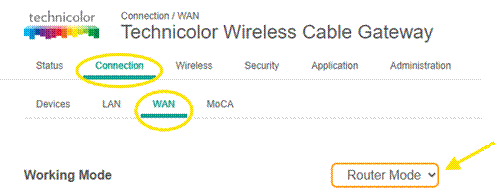
- Click on Connection
- Click on WAN
- Scroll down to Working Mode and click the dop down
- Click on Bridge Only
- Save

How to collect DOCSIS Log files for your Technicolor Modem
- Log into the modem as per above
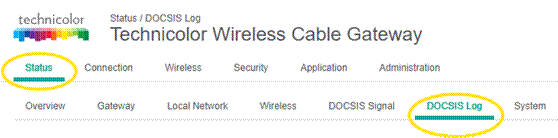
- Click on Status
- Click on DOCSIS Log
- Copy all log files
- Paste into email and send to support@heybabbl.ca